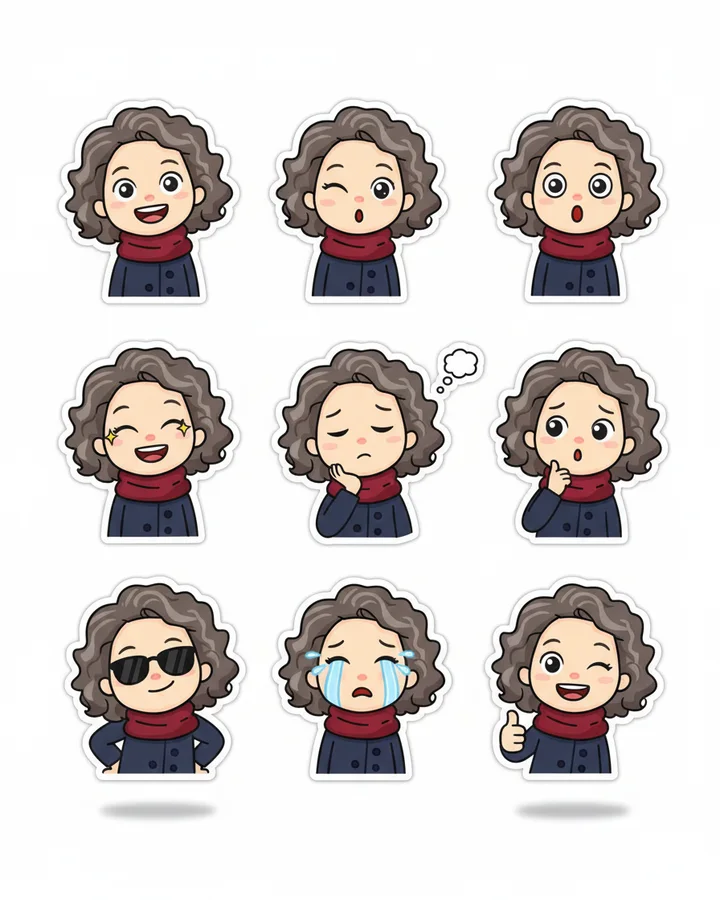
Emoji Sticker Set
A 3×3 sheet of expressive cartoon stickers of you.
Create your image
A free account is needed to create. It takes a minute, and you come back to this page.
How it works
Add your photo
Choose one clear photo from your device, or one of your earlier images.
Pick the shape
Keep the template's own shape, or choose another aspect ratio.
Create and keep it
Your new image opens in the Image Canvas, ready to download, share or refine.
When to use Emoji Sticker Set
Emoji Sticker Set is a fun template: it turns your photo into something playful, such as a character, a toy or a themed scene. Use it for a laugh, a gift or a picture made to be shared.
From one photo you get one new image, saved to My images in the Image Canvas, where you can download it, share it or keep changing it.
For the best result
- Choose a photo where the person, pet or thing you want to transform is easy to see and fills much of the frame.
- The result is square (1:1): keep the subject near the center, as the far edges of a wide or tall photo may not fit.
- Use a sharp, well-lit photo.
- Start from the original photo: you can refine the result afterwards.
Details
- Category
- Fun
- Shape
- Square (1:1)
- Included in
- Premium & Max
- You add
- One photo
Questions about Emoji Sticker Set
Is Emoji Sticker Set free?
It needs a paid plan. The plans that include it: Premium & Max. On a plan without it, the page offers an upgrade instead of creating.
Do I need an account?
To create an image, yes. Signing up is free and brings you back to this page; looking at the example and these details needs no account.
What photo do I need?
Just one: a PNG, JPEG or WebP file from your device, or an image you made earlier on redist.ai. There is no prompt to write, because the template already holds the instructions.
What shape is the result?
Square (1:1), the template's own shape. Before you create, you can choose another one in the aspect ratio menu, such as widescreen or vertical.
Where do my images go, and who can see them?
Each image goes to My images in the Image Canvas, in a session of its own in your history. Only you can see it until you create a public link with its Share button, and you can make it private again at any time.
Can I change the result afterwards?
Yes. Open the image to describe a change, resize it to another shape or remove something from it, or ask for a change in its session. Each change is a new image and the earlier one stays. On a computer you can also remove its background or mark the area to change.
Can I use Emoji Sticker Set with another photo?
More templates like this
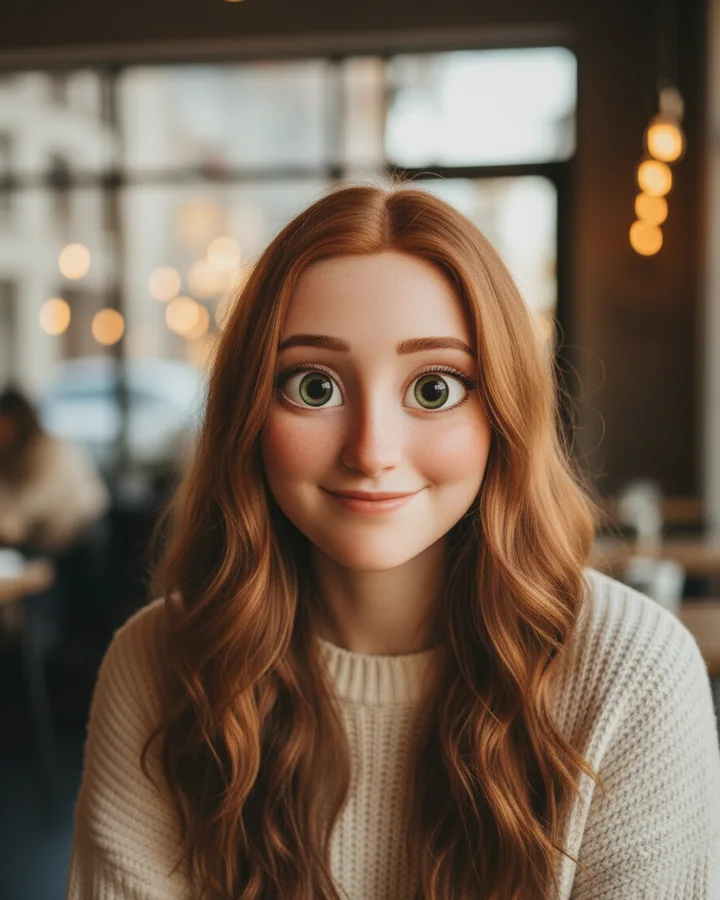 3D Cartoon Character3D Cartoon CharacterBecome a charming 3D animated movie character.
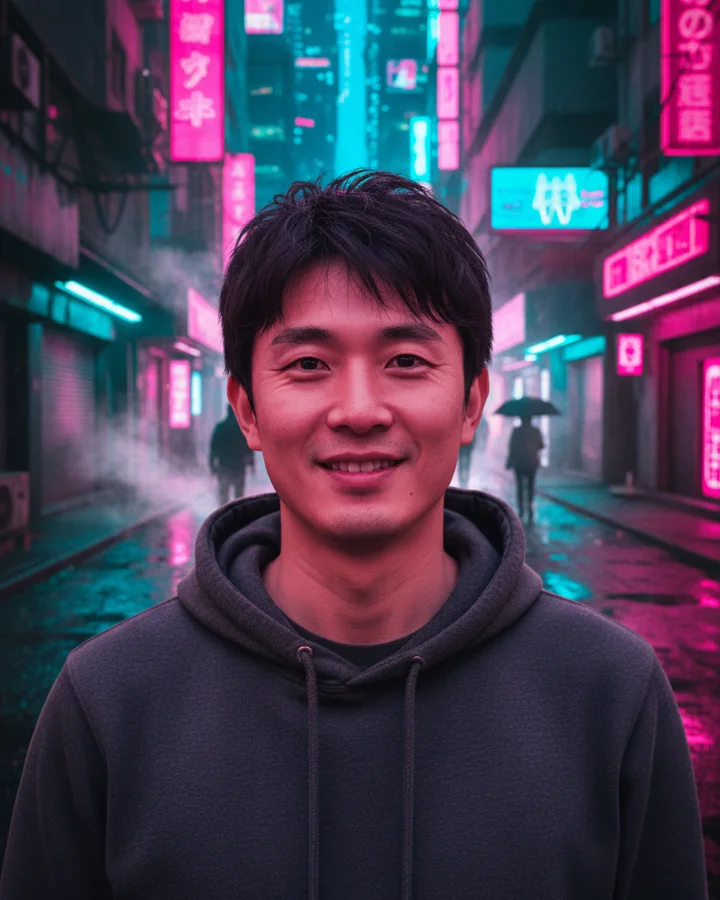 Neon CyberpunkNeon CyberpunkDrop the scene into a neon-lit cyberpunk city at night.
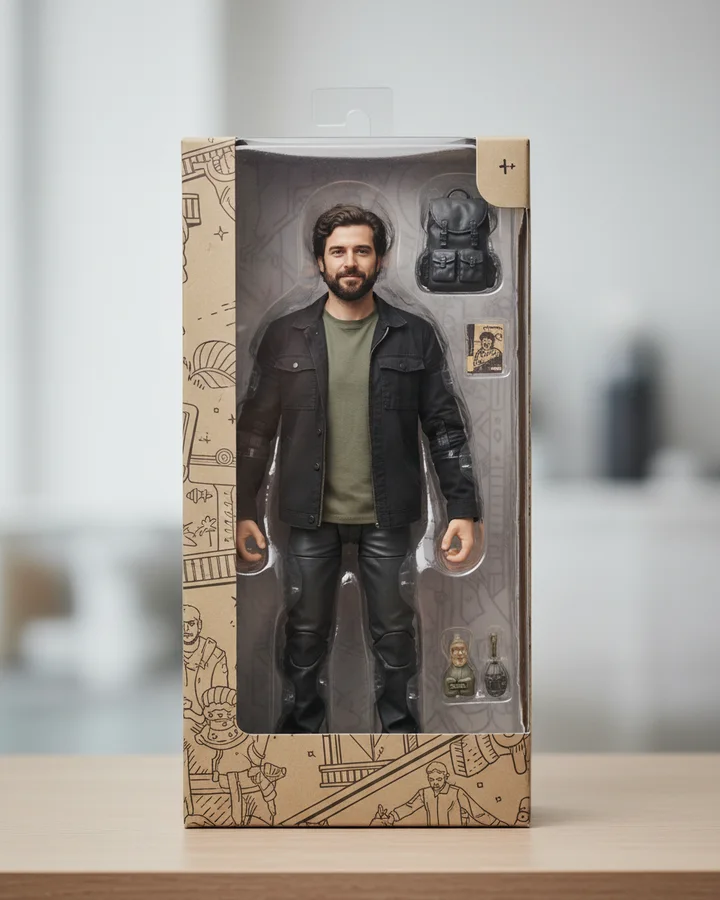 Action FigureAction FigureBecome a collectible figure in its retail packaging.
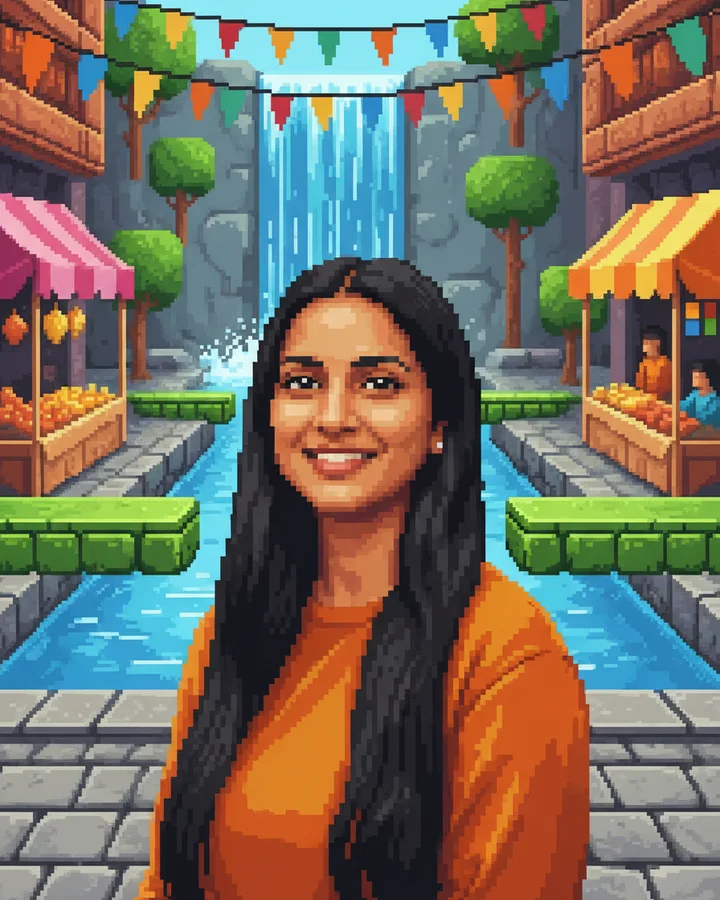 16-Bit Game Character16-Bit Game CharacterStep into a retro pixel-art platformer.
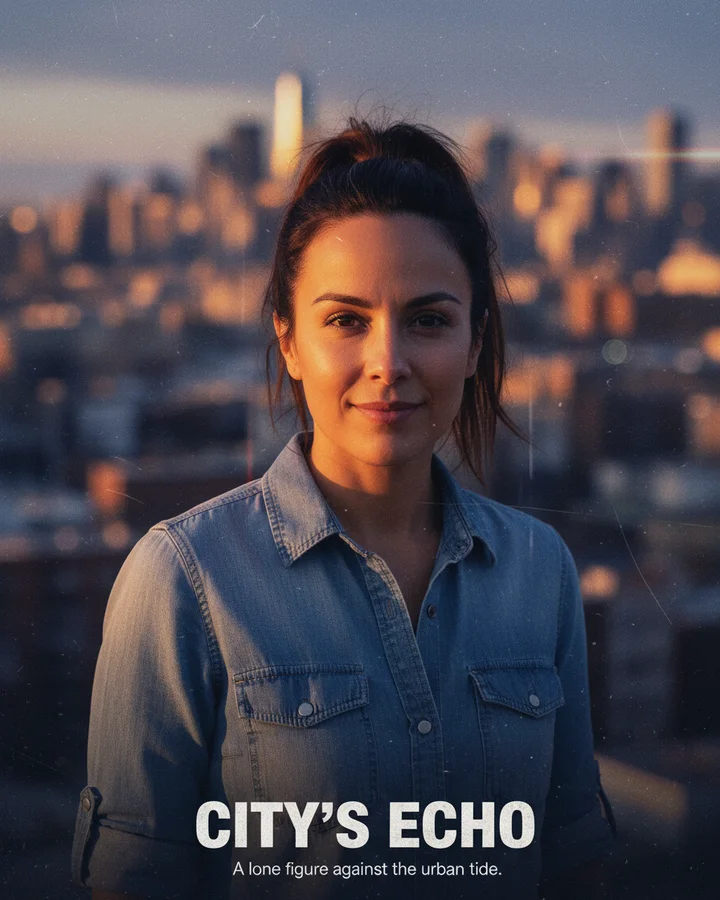 Movie PosterMovie PosterStar in a dramatic cinematic poster.
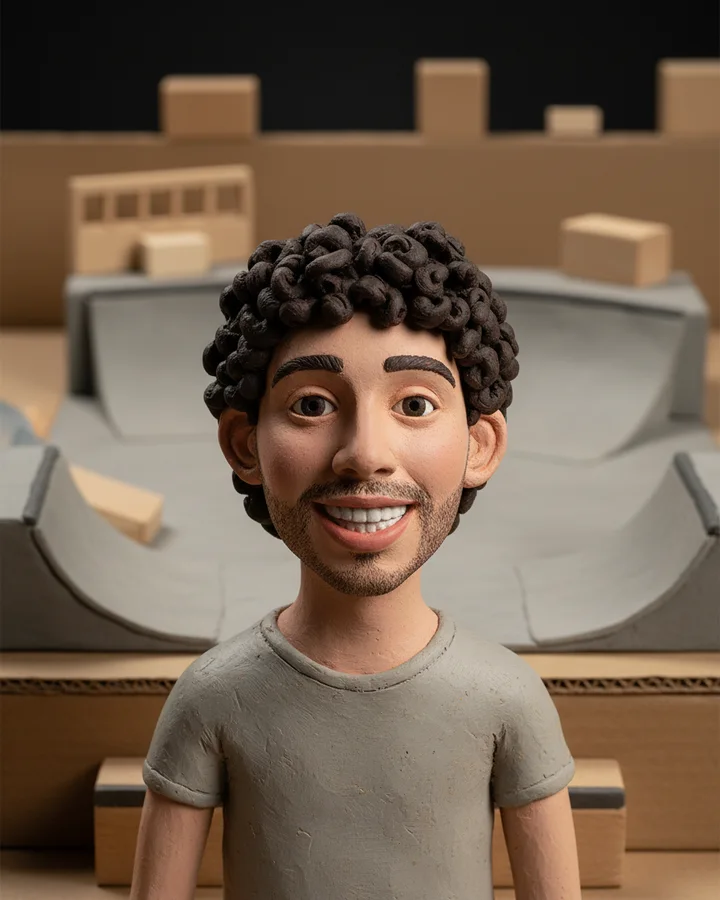 Claymation CharacterClaymation CharacterA handmade stop-motion clay version of you.